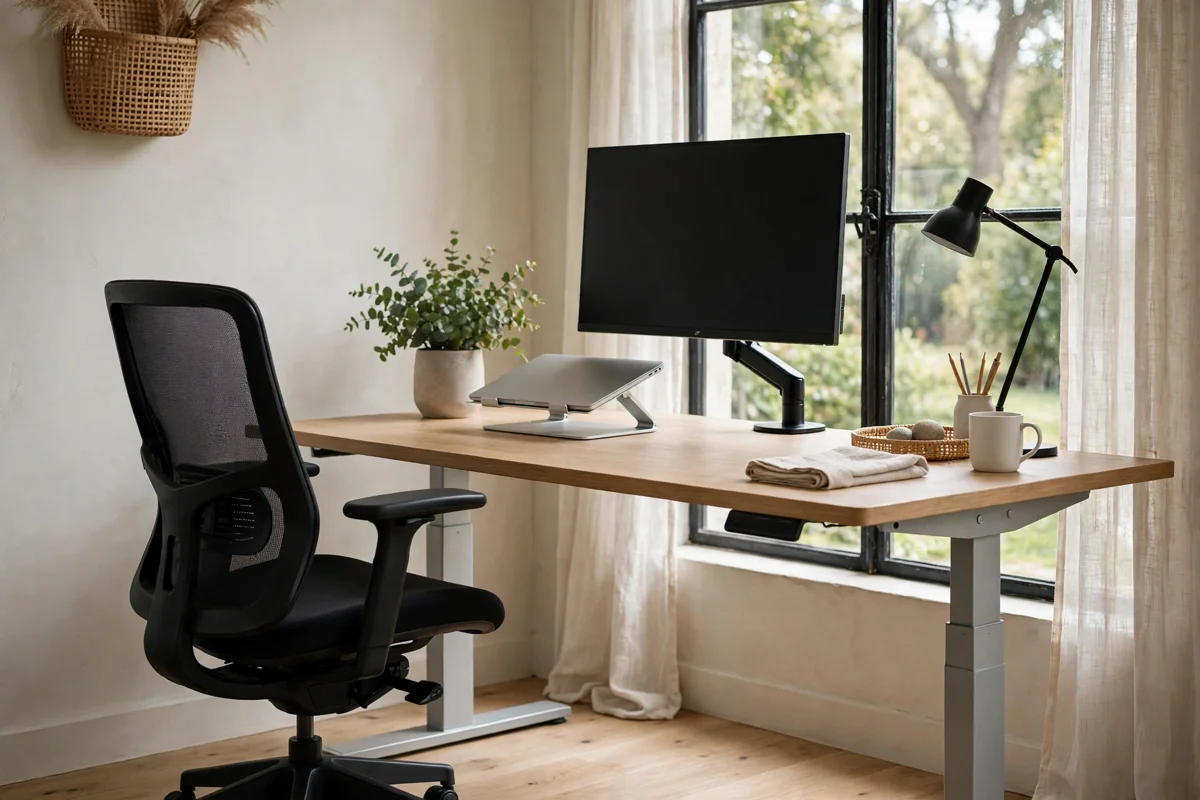
An ergonomic home office is not about buying the most expensive chair on the market. It is about setting up your desk, screen, and chair so your body stays in a neutral, comfortable position for hours at a time. When the setup is wrong, the signs show up slowly: a stiff neck by lunch, aching shoulders by evening, and tired eyes that make it hard to focus. The good news is that most fixes are simple, cost little, and can be done in a single afternoon. This guide walks through each part of an ergonomic home office setup in the order that matters most, from your chair to your lighting, so you can work comfortably and protect your back, neck, and wrists.
Start With Your Chair and Desk Height
Your chair is the foundation of the whole setup. Sit down and check three things. First, your feet should rest flat on the floor with your knees at roughly a right angle. If your feet dangle, use a footrest or a sturdy box. Second, your lower back should touch the chair’s lumbar support. If your chair has no built-in support, a small cushion placed at the curve of your lower back does the same job. Third, your shoulders should stay relaxed and level, not hunched up toward your ears.
Desk height matters just as much. When you sit with your elbows bent at about a right angle, your forearms should rest comfortably on the desk surface without you having to lift your shoulders. Many people work at dining tables that are slightly too high, which forces the shoulders upward all day. If your desk cannot be adjusted, raising your chair and adding a footrest is often the easiest fix. A sit-stand desk is a nice option if you have one, because changing between sitting and standing through the day takes pressure off your spine, but it is not a requirement. A well-adjusted sitting setup beats a poorly used standing desk every time.
Screen Position: Eye Level and Arm’s Length
Neck pain is the most common complaint of home workers, and it usually comes from a screen that sits too low. Your monitor should be about an arm’s length away, with the top of the screen at or just below eye level. That way you look slightly downward at the centre of the screen, which keeps your neck in a neutral position. A laptop on its own almost always fails this test, because the screen is far too low when the keyboard is at a comfortable height. The fix is a laptop stand plus a separate keyboard and mouse, which lets you raise the screen without raising your hands.
If you use two monitors, place the one you use most directly in front of you and the second one to the side at a slight angle, so you are not constantly twisting your neck. Keep the screens at the same height and distance where possible. Brightness matters too: match your screen brightness to the room around you. A screen that glows in a dark room or looks dim in bright daylight both strain your eyes. If your eyes feel dry or tired by the afternoon, check your screen height and brightness before blaming your workload.
Keyboard, Mouse and Wrist Comfort
Your wrists should stay straight and relaxed while you type, not bent upward or resting hard on a desk edge. Keep your keyboard close enough that your elbows stay near your body, and avoid reaching forward for the mouse. A mouse that fits your hand size makes a real difference over a long day, and a mouse pad with a soft wrist rest can help if your desk edge presses into your forearms. Take the pressure off your wrists during calls or reading time by letting your hands rest in your lap instead of hovering over the keyboard.
Small habits protect your hands more than any single gadget. Learn the keyboard shortcuts for the tasks you repeat most, so you click less. If you spend long stretches on video calls, a headset frees both hands and keeps you from cradling a phone between your ear and shoulder. And if background noise in your home breaks your concentration, a good pair of noise-cancelling headphones can make focus time genuinely quiet without you having to raise your volume to compete with the house.
Light, Sound and Air in Your Workspace
Lighting is the most overlooked part of a home office. The best setup puts your desk beside or facing a window, so daylight falls on your work without shining directly into your eyes or onto your screen. If glare hits your monitor, move the desk or angle the screen rather than squinting through it. In the evening, a desk lamp that lights your work surface without glaring into your eyes keeps strain down, and warmer light in the evening helps your body wind down later. Smart lighting that you can dim from your desk is one of the simplest upgrades here, because you can adjust brightness through the day without getting up.
Air and temperature matter more than people expect. A stuffy room makes you drowsy and dulls concentration, so open a window or run a fan for fresh air during the day. Keep the room at a temperature where you feel comfortable in normal indoor clothing; if you are constantly too warm or too cold, your body spends energy compensating instead of focusing. If you share your home with others, agree on quiet hours for deep work, and keep your workspace as separate from living areas as your home allows. Even a room divider or a dedicated corner signals to everyone, including yourself, that this space is for work.
Movement Breaks That Actually Happen
No chair, however good, makes sitting all day healthy. The most useful habit in any ergonomic home office is the regular movement break. A practical rhythm is to stand, stretch, and walk for a few minutes every half hour or so: roll your shoulders, stretch your neck gently from side to side, open and close your hands, and walk to another room for water. Set a quiet timer if you tend to forget, and tie breaks to natural pauses, such as the end of a call or after sending an important email.
Breaks protect more than your back. Stepping away from the screen rests your eyes, and a short walk often untangles a problem you have been staring at for an hour. If you work for yourself or juggle more than one income stream, this matters even more, because nobody else is setting your schedule for you; the rise of side hustles and flexible work means more people than ever are designing their own workdays, and building breaks into that design is part of doing it well. Skipping meals to keep working is a related trap: how skipping breakfast can affect your mood and mental health is a reminder that the basics, food, water, and rest, are what keep a long workday sustainable.
A Simple Setup Checklist
Before you call your home office done, run through this short checklist. Feet flat on the floor, knees at a right angle. Lower back supported. Screen at eye level and an arm’s length away. Wrists straight, mouse within easy reach. Light on your work, not in your eyes. A glass of water on the desk and a plan for movement breaks. If you can tick all of these, your setup is already better than most home offices.
Finally, remember that your workday needs an ending as much as a beginning. Shut the laptop, leave the desk, and give your body and mind a clear signal that work is over. Good sleep hygiene habits start with that boundary: when the workday ends cleanly, the evening unwinds more easily, and tomorrow’s focus starts tonight. An ergonomic home office is not a one-time project. Adjust it as your work changes, notice the first small ache instead of ignoring it, and keep the setup working for you, not against you.